
AMSpackages
General
AMSpackages is a GUI module that can be used to install optional software components.
Users of the graphical user interface will automatically be prompted to install an optional component when the option is selected in AMSInput.
Alternatively they can use SCMMenu → Packages to install packages at any time.
The graphical interface can also be started using "${AMSBIN}/AMSpackages" gui on the command line.
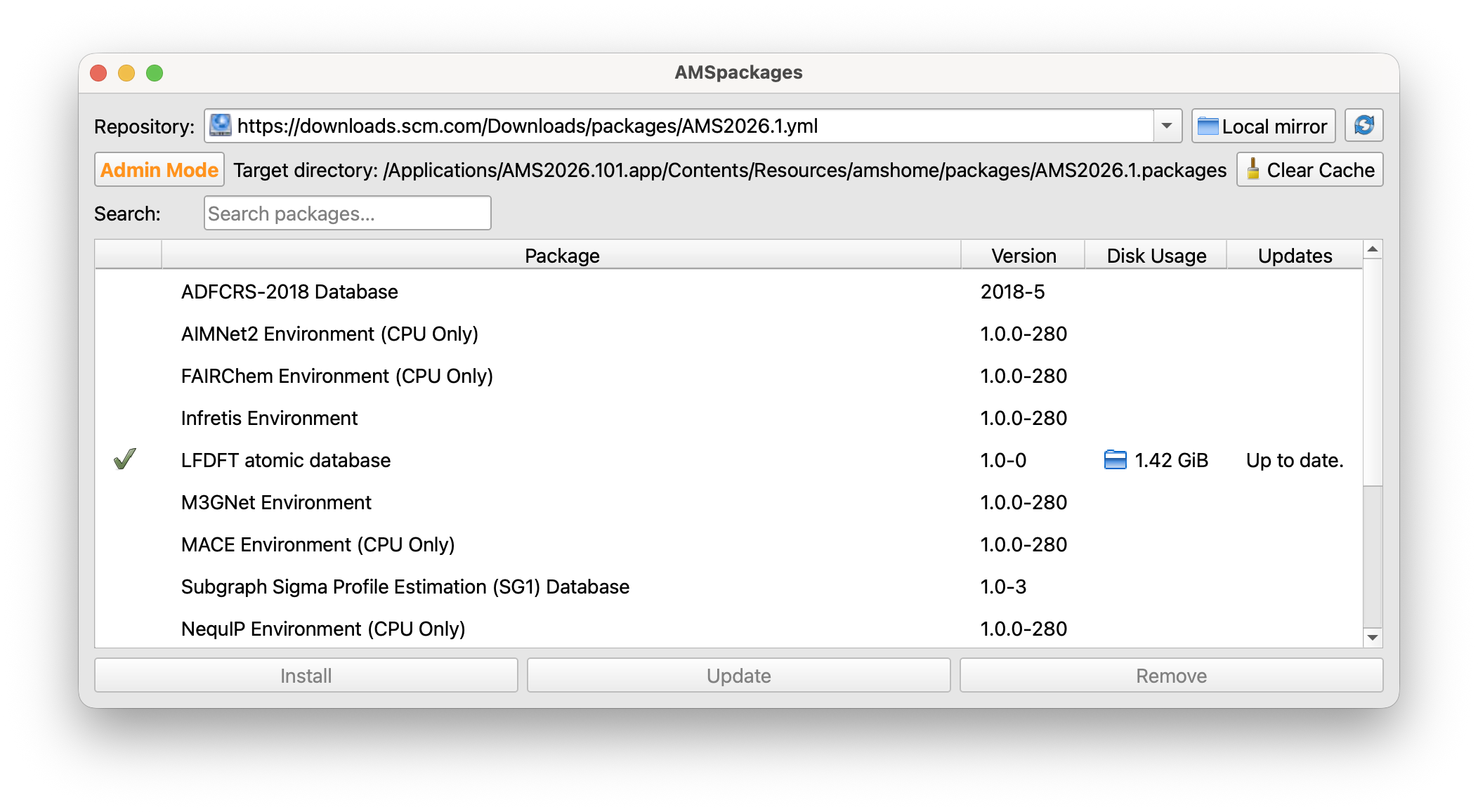
Fig. 1 The main window of the AMSpackages gui.
Command line features of AMSpackages are documented in the installation chapter of the manual.
Selecting the installation mode
If you are allowed to write to AMSHOME the GUI opens in admin mode by default, indicated by the button on the top left.
Any changes made in this mode are shared among all users of the software.
If you want to install packages only for the current user, hit the toggle button labeled Admin mode to switch to single-user mode.
Installing packages
Select the packages that you wish to install and click install. Some information will be printed to the screen regarding progress. If you wish to abort an installation that is in progress, you can click the abort button.
After the package is installed, it will automatically be detected by any programs that use it. To view the content of an installed package, you can double-click the folder icon in the disk usage column. This will open it inside your default file explorer.
Removing packages
Select the packages that you wish to remove and click remove.
Clearing the cache
AMSpackages may leave some files behind that can be (re)used when installing multiple packages or reinstalling. If you want to explictly clean up these files you can hit the “Clear Cache” button.
Selecting an alternative package source
If you are on a computer with a slow connection or behind a firewall, you can select a local copy of our repository
using the local mirror button.
Navigate to your copy and and select the AMS2026.1.yml file inside the packages directory.
Warning
Never install packages from an untrusted source. Only use a copy directly downloaded from our website.
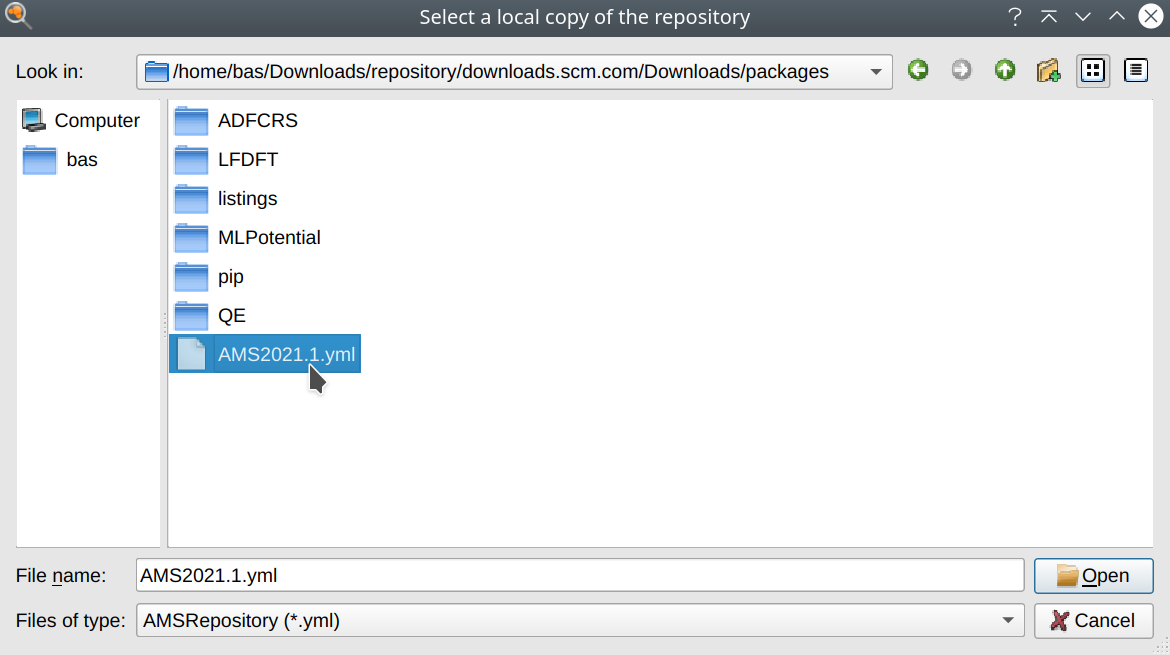
Instructions on how to obtain a copy can be found in the installation section.