
4.2. Train MACE with the ParAMS GUI
Important
This tutorial is only compatible with ParAMS 2026.1 or later.
This example shows how to train your own MACE machine learning potential by fine-tuning/retraining the MACE-MP-0-Small foundation model.
Prerequisite: Follow the Getting Started: Lennard-Jones and Import training data (GUI) tutorials to get familiar with the ParAMS GUI.
In this tutorial, the training data has already been prepared.
In general, when training ML potentials like MACE you can only train to single-point energy and forces. For details, see Requirements for job collection and data sets.
4.2.1. Open the example input file
You should now see input options for MACE in the Machine Learning.
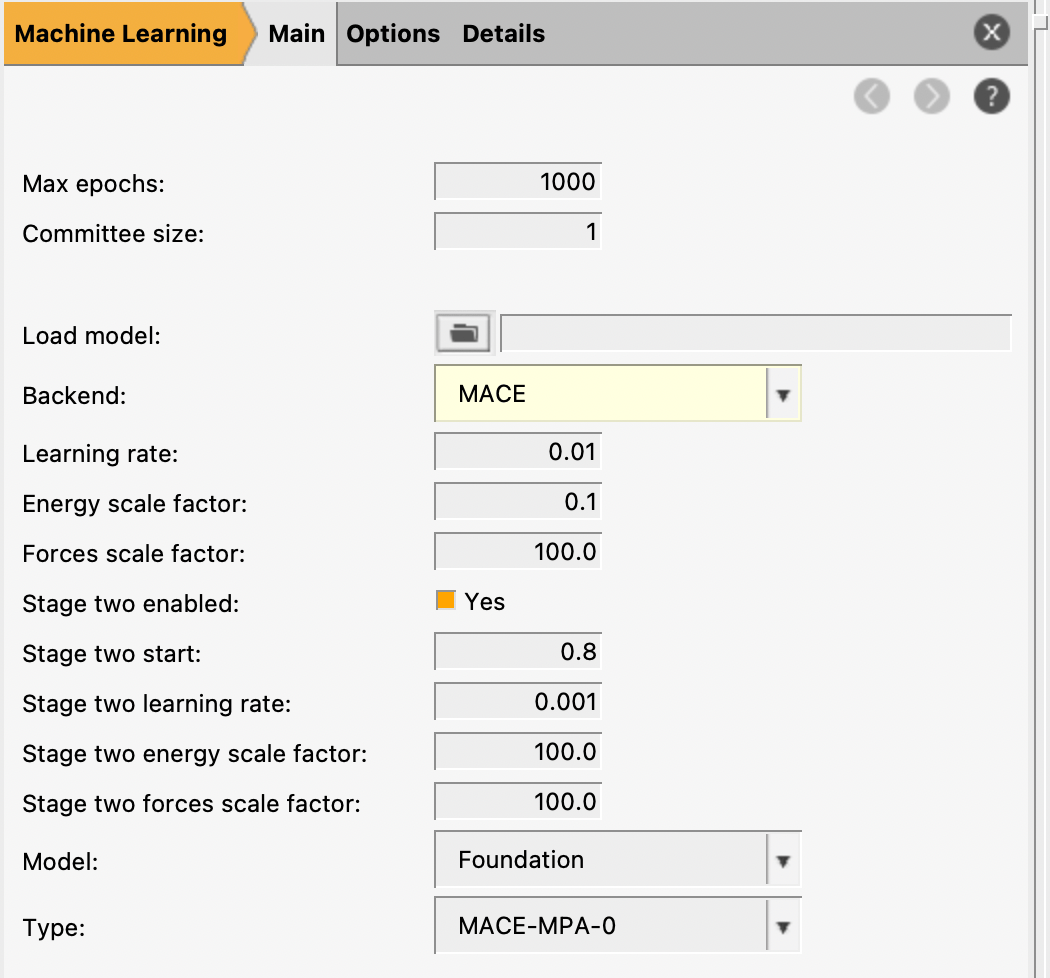
params.inYou can also find this file in $AMSHOME/scripting/scm/params/examples/MACE/params.in.
This loads a few liquid argon structures and sets up some ML training settings.
Important
The set of elements supported by a MACE model is determined by the training data. Any elements not present in the training set are removed from the model and cannot be used later.
In this tutorial, since the training data contains only argon, the retrained potential will only be valid for argon systems. To build a model that supports multiple elements, make sure all required elements are present in the training data.
4.2.2. Job collection, training and validation sets
For training machine learning potentials, you can only train to single-point energy and forces.
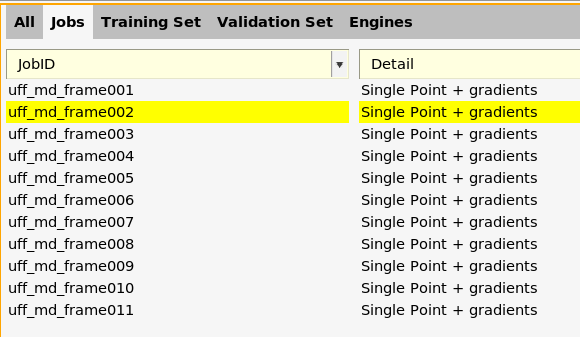
Here, you see that all jobs are of type “Single Point + gradients”. This is the only type of job that can be used during the training. The job collection can also contain other types of jobs, but they will then not be used during the training but will simply be run after the training has finished.
Tip
When importing training data into ParAMS:
Use the “add trajectory singlepoints” importer to import data from trajectories
Use the “add pesscan singlepoints” importer to import data from PES scans
If you use the “add single job” importer, make sure that “Task (for new job)” is set to singlepoint !
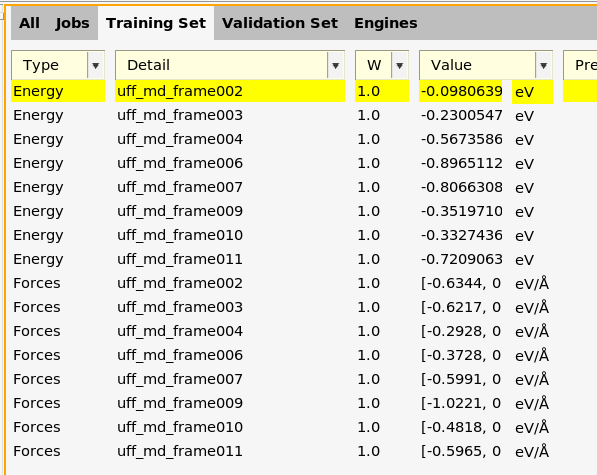
Here, you can see energies and forces for the training set.
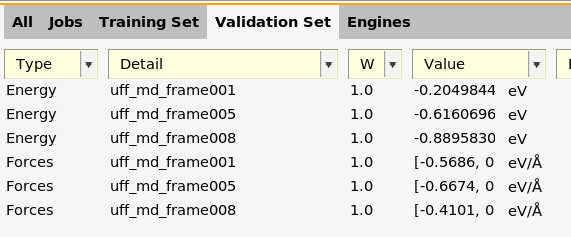
Here, you can see energies and forces for the validation set.
For task Machine Learning, you should always have at least one entry in the validation set.
Note
The energy and forces for a given job must belong to the same data set.
Example: Both the energy and forces for uff_md_frame001 are in the
validation set. It is not allowed to split these so that for example
the energy is in the training set and the forces in the validation set.
4.2.3. Machine learning basic settings
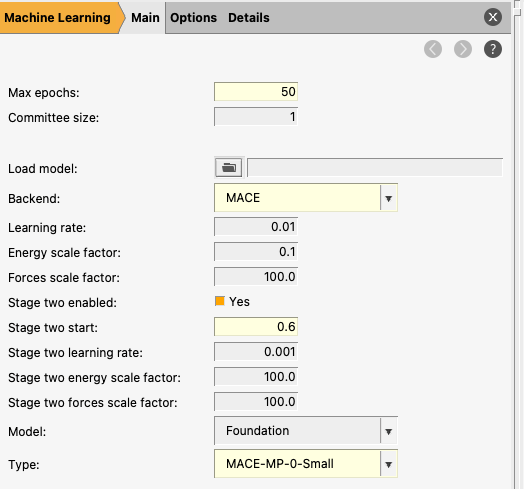
The bottom left panel shows the machine learning settings.
Max epochs: sets the maximum number of training epochs (full passes over the training dataset). In practice, the optimal number may be lower if early stopping is triggered or the validation error plateaus. Increasing this allows the model more opportunity to converge, but excessively large values can lead to overfitting or unnecessary computational cost.
Committee size: specifies how many independent ML models are trained with different initializations. The final prediction is obtained by averaging over all models in the committee. Using a committee (size > 1) can improve robustness and provides a useful estimate of prediction uncertainty (via the spread between models), but increases both computational time and memory usage roughly linearly with the number of models.
Load model: allows you to initialize training from an existing model stored in a ParAMS results directory. This enables continuing training (e.g., for more epochs), fine-tuning on additional data, or adapting a model to a new system. This is particularly useful for transfer learning workflows, such as refining a pretrained model on a specific dataset.
Backend: selects the machine learning model architecture used for training. Here we use MACE, a message-passing neural network designed for atomistic systems. Note that MACE must be installed separately via the AMS package manager (SCM → Packages) before it can be used.
Learning rate: controls the step size used during optimization. Larger values allow faster learning but may lead to instability or overshooting, while smaller values provide more stable and precise convergence but can slow down training.
For the MACE backend, you can select three different Models:
Custom: this trains a new neural network completely from scratch. You can decide the architecture for this neural network, for example the distance cutoff and the number of channels. Note that you will typically require quite a lot of training data to train a good model using Custom.
Foundation: this starts the training from one of the pretrained MACE models. This typically makes training much faster. You cannot, however, change the architecture parameters.
Model File: this starts the training from a custom pretrained MACE model (for example, a previous retraining or MACE model not available in AMS).
50.4.2.4. Other machine learning settings
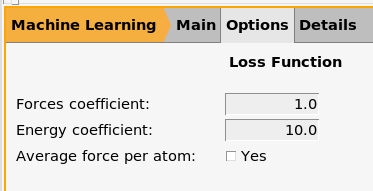
Here the forces and energy coefficients can be set for the loss function.
In addition, in the main machine learning panel, you can set the Energy scale factor and the Forces scale factor. These are applied to the above energy and forces coefficients, such that the final coefficients are the product of these two settings.
This is because MACE also has the option to perform “two stage” training.
In this case the training will cover two regimes:
Stage |
1 |
2 |
|---|---|---|
Epochs |
0 → 30 |
30 → 50 |
Forces Coefficient |
1.0 |
1.0 |
Energy Coefficient |
10.0 |
10.0 |
Forces Scale Factor |
100.0 |
100.0 |
Energy Scale Factor |
0.1 |
100.0 |
Overall Forces Loss Weight |
100.0 |
100.0 |
Overall Energy Loss Weight |
1.0 |
1000.0 |
Learning Rate |
0.01 |
0.001 |
In the first stage, the model focuses on learning forces, which provide a dense and stable training signal. In the second stage, the energy contribution is increased and the learning rate is reduced, allowing the model to refine the relative energetics more precisely. This two-stage approach often improves energy accuracy without degrading the quality of the forces.
If you find that the energy or forces are not trained accurately enough, you may consider modifying the Energy scale factor and the Forces scale factor in either or both stages.
4.2.5. Run the MACE training
mace_tutorial.paramsWait for the job to finish. It may take a few minutes.
4.2.6. View the MACE training results
Here, you can see graphs for loss function and stats vs. epoch.
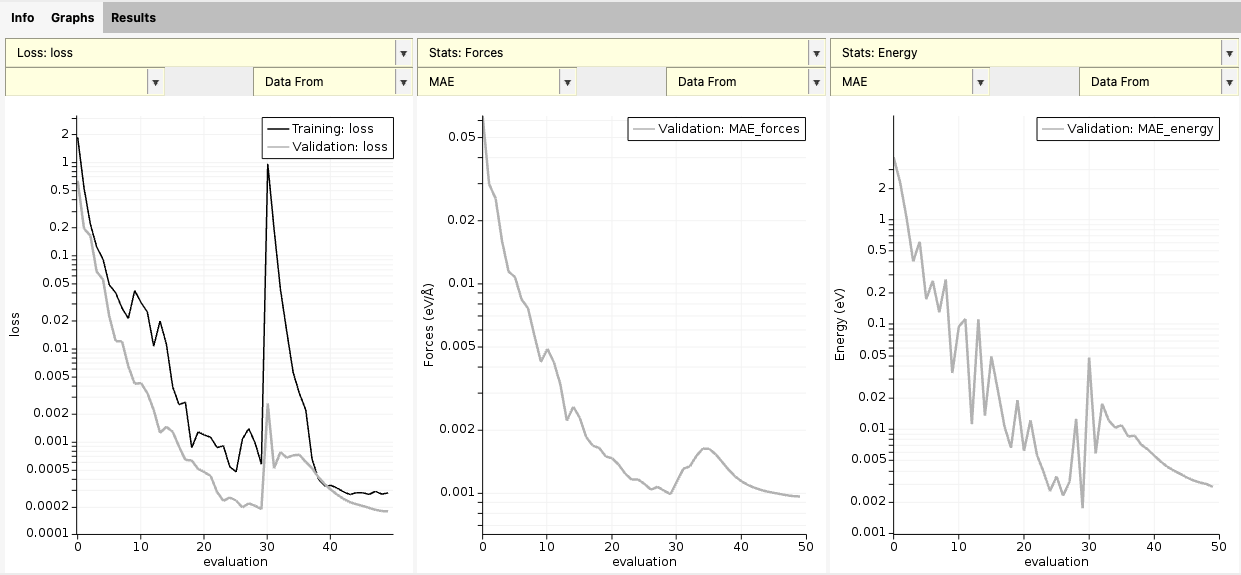
Note how the loss increases at epoch 30 as the second stage of training begins and the loss function is rescaled. In addition, the energy MAE is smoother due to the lower learning rate.
At the end of the training, you also get a scatter plot with predicted vs. reference forces and energies. You can switch between Best training and Best validation to see the training and validation performance.
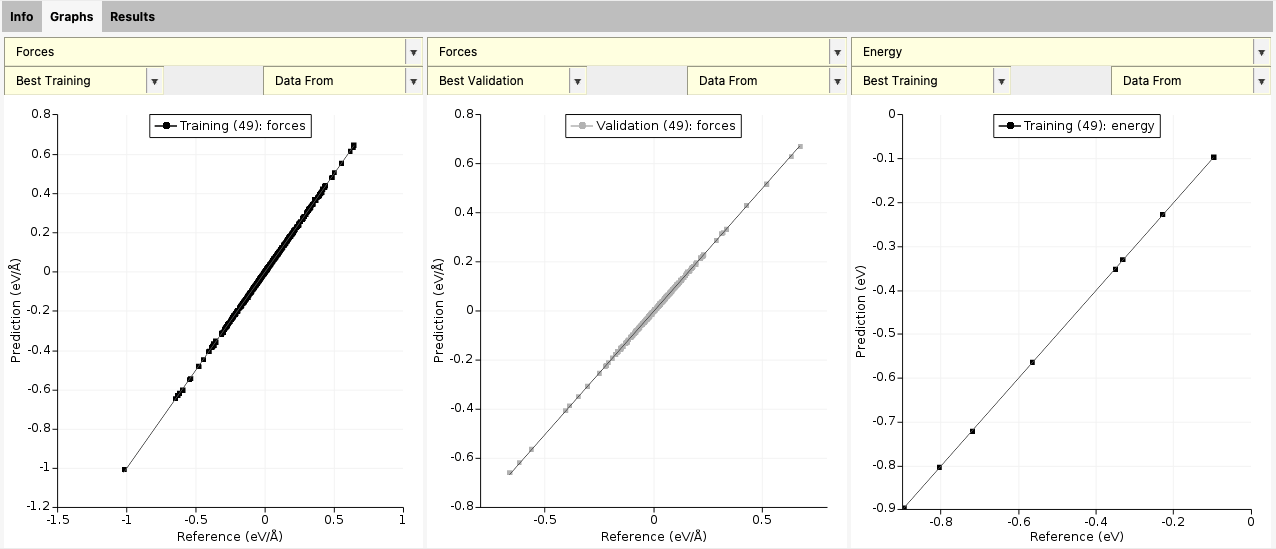
For this small model and dataset, you can see that the agreement is extremely good.
Note
For Task MachineLearning, the scatter plot only appears when the training has finished.
4.2.7. Use the retrained model for production calculations

This shows the contents of part of the AMS text input file you would need to provide
to use the retrained model in a production calculation. In particular, it shows you the ParameterFile containing the trained parameters.
There are two ways to import these engine settings into AMSinput:
4.2.7.1. Method 1: Open optimized engine in AMSinput
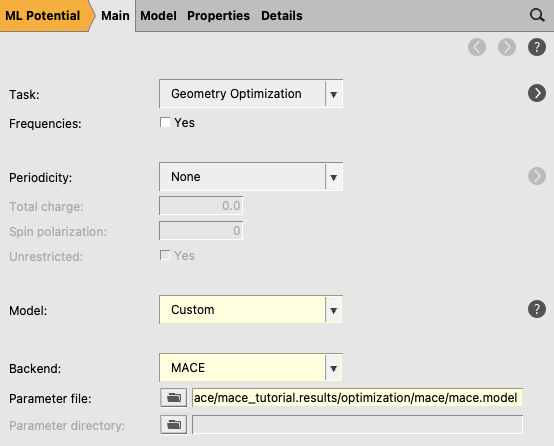
This opens a new AMSinput window with the MLpotential engine selected.
This gives you a warning to double-check the input. It should switch
automatically to the MLpotential engine with Model Custom and set the corresponding ParameterFile.
4.2.7.2. Method 2: Copy-paste into AMSinput
Engine MLPotential … EndEngine blockThis gives you a warning to double-check the input. It should switch
automatically to the MLpotential engine with Model Custom and set the corresponding ParameterFile.