
GUI modules
The AMS-GUI is the Graphical User Interface for the Amsterdam Modeling Suite. It consists of several modules for specific tasks. Those modules work together and exchange information.
All the AMS-GUI modules have one common SCM menu on the top left of the window. You can use the commands inside the SCM menu to start other GUI modules (or switch to them).
When selecting a GUI module from the SCM menu it will start and open the current job. If that module is already open with the current job, it will be activated (brought to the foreground). The current job is the selected job in AMSjobs, or the job open in some other GUI module if you use the SCM menu in that module.
SCM → Preferences
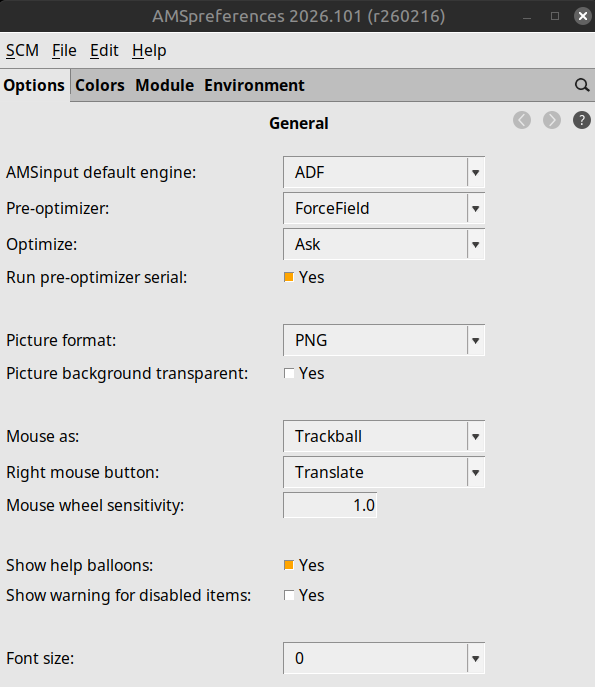
AMSpreferences ($AMSBIN/amsprefs)
allows you to adjust and save numerous GUI preferences, such as color
schemes, environment variables, etc. The preferences will be used by all
AMS-GUI modules.
Mac users will find preferences under the application name menu (e.g. AMSinput) → Settings…
SCM → New Input
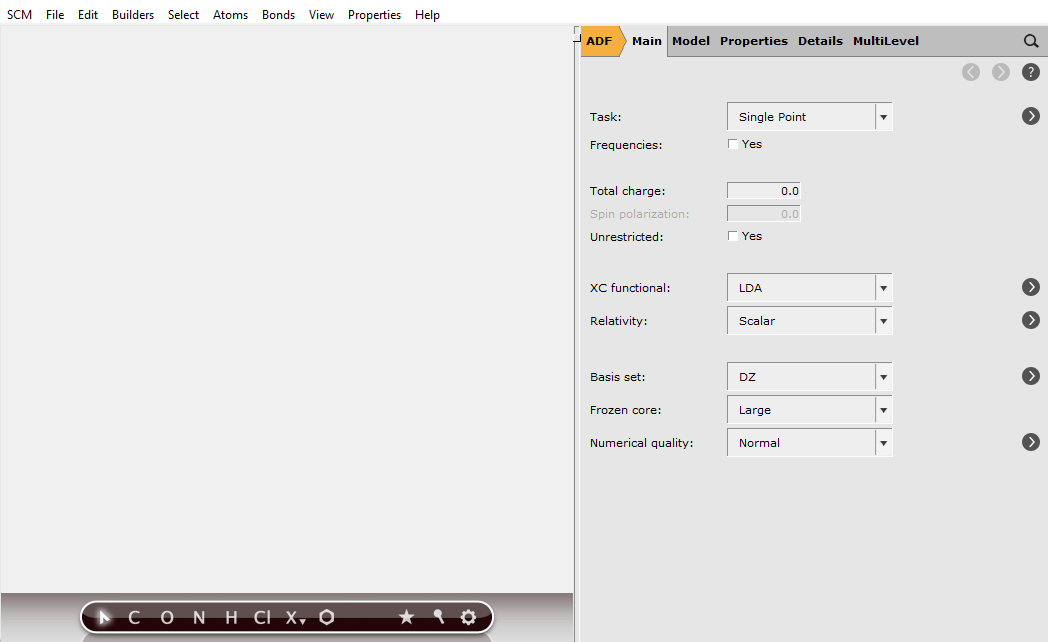
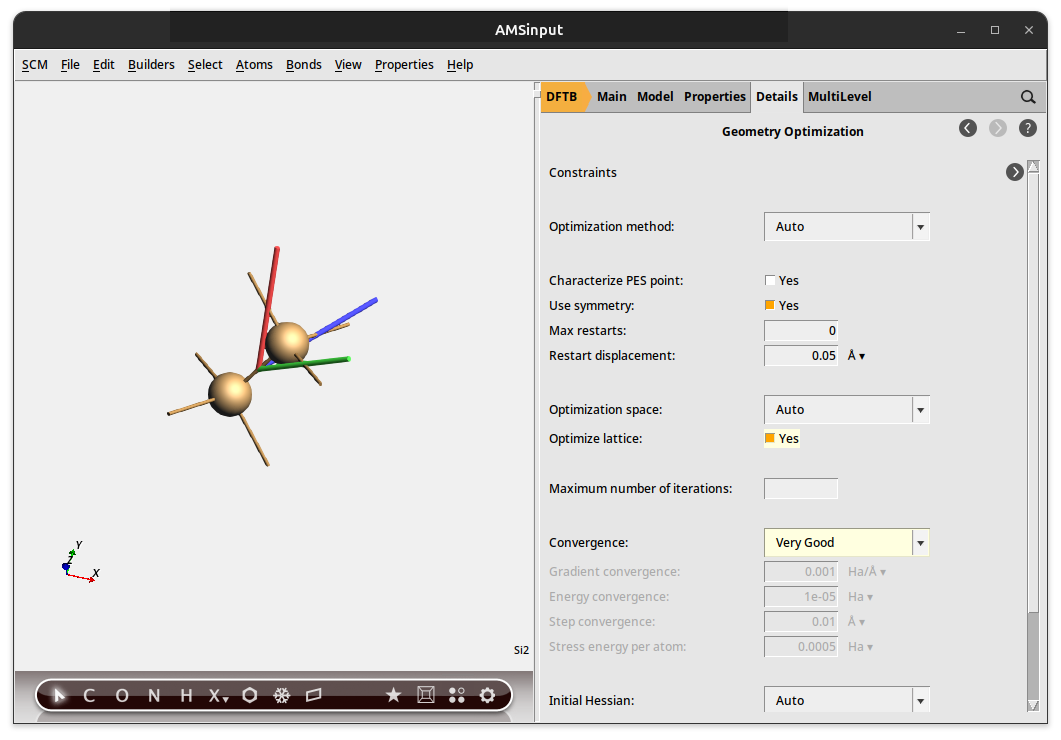
AMSinput ($AMSBIN/amsinput) helps users to easily create AMS jobs. You can use AMSinput to define your molecule (geometry), pre-optimize it, and to set details of your AMS job using an easy-to-use graphical user interface.
SCM → Input
As New Input, but load the selected / current job.
SCM → View
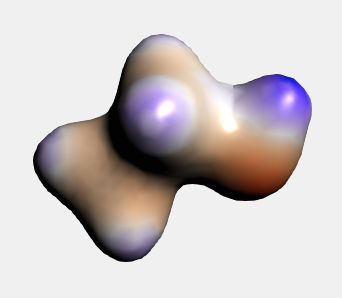
AMSview ($AMSBIN/amsview) displays volume data, such as electron densities, orbitals, electrostatic potentials and more. You can also use it to visualize scalar atomic data like charges, some tensor data, and AIM (Bader) results.
SCM → Movie
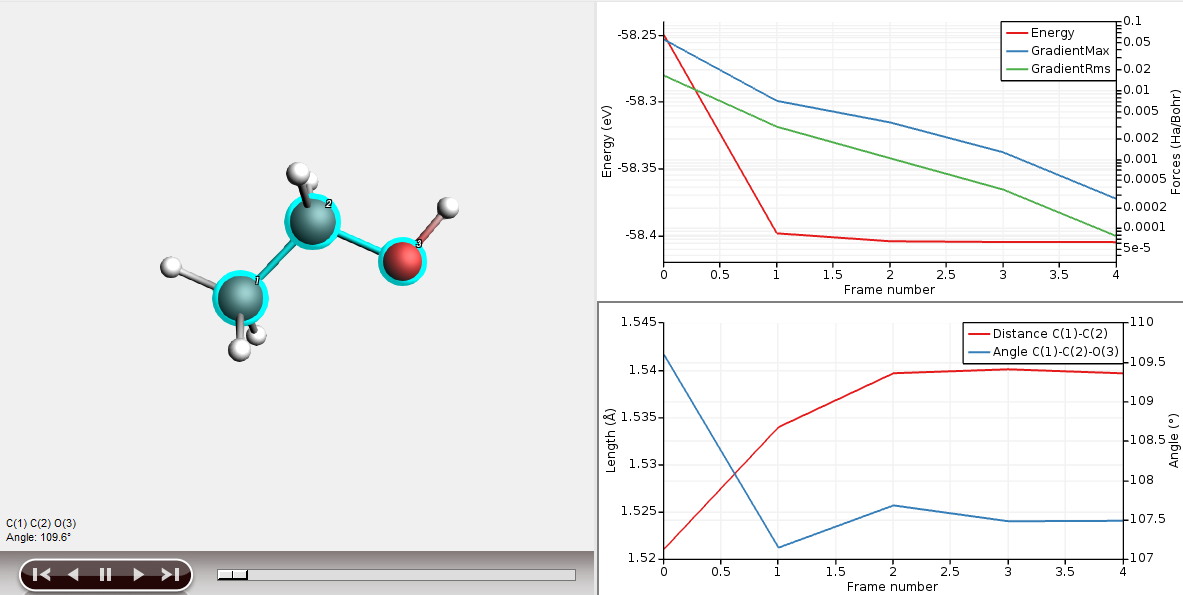
AMSmovie ($AMSBIN/amsmovie) follows geometry steps as performed by AMS during geometry optimizations, molecular dynamics, IRC calculations, etc. It can be used during the calculation to monitor the progress (based on information from the logfile), or it can be used to analyze the geometry changes after a calculation. It is also used to display normal modes calculated with a frequency calculation.
SCM → Levels
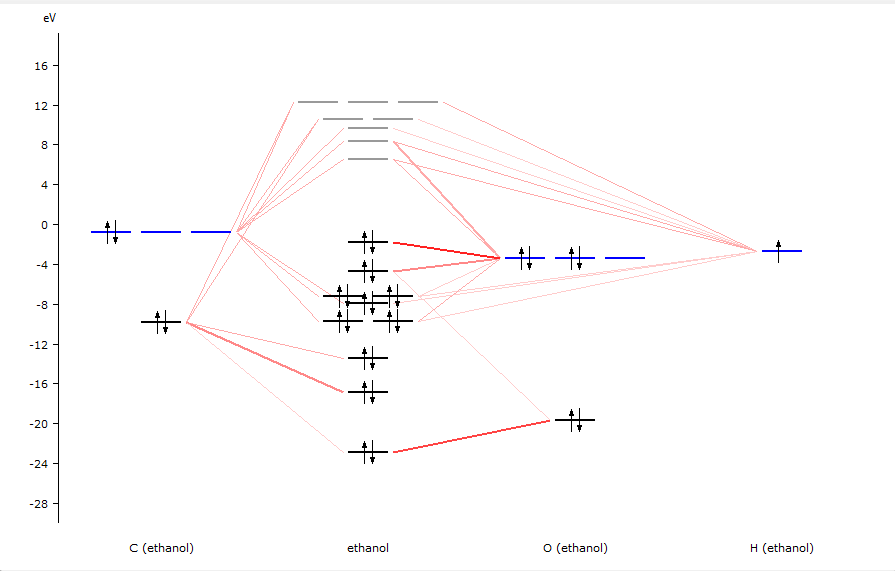
AMSlevels ($AMSBIN/amslevels) generates a diagram showing the energy levels of a finished calculation. You can interact with it: show an interaction diagram (how the molecular orbitals are constructed from fragment orbitals), show labels, occupations, orbitals, etc.
SCM → Logfile
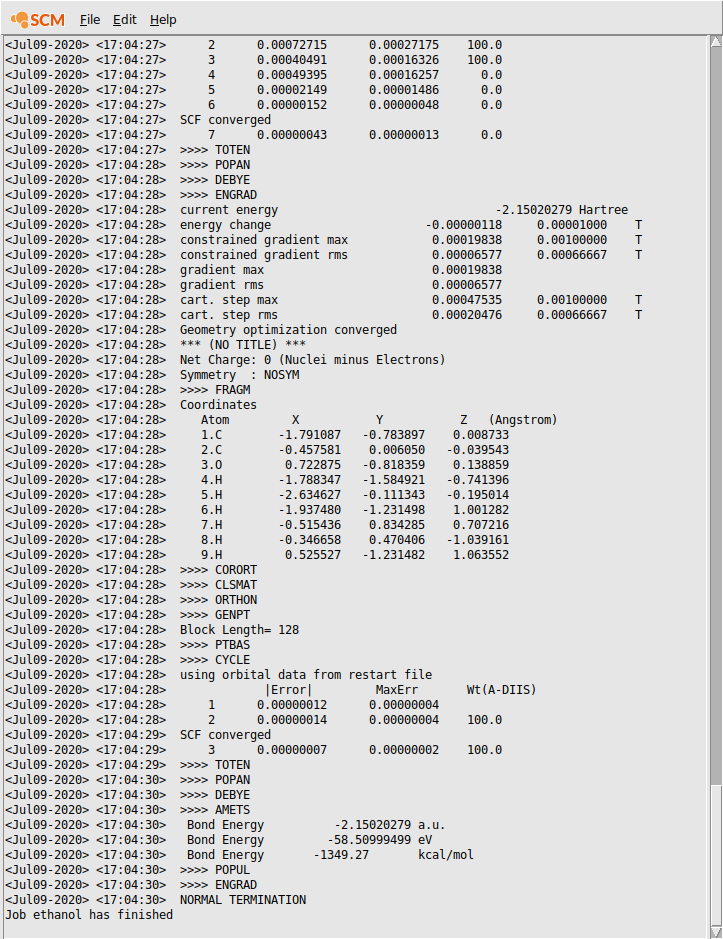
AMStail ($AMSBIN/amstail) shows the contents of a text file, updating when the text file grows (like the UNIX tail -f command). It is typically used to monitor the ‘logfile’. The progress of an AMS calculation is always written to this file.
SCM → Output
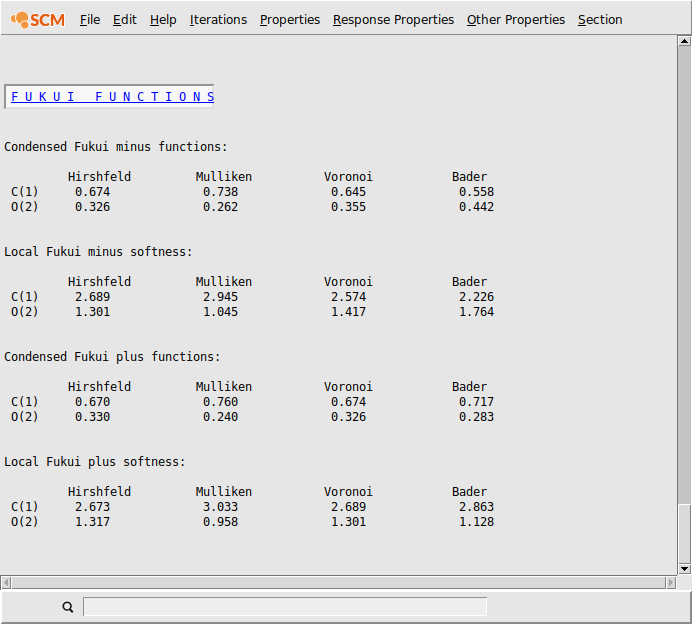
AMSoutput ($AMSBIN/amsoutput) shows the output of AMS (or any other text file). It will analyze the output and provide quick links to sections of interest.
SCM → Spectra
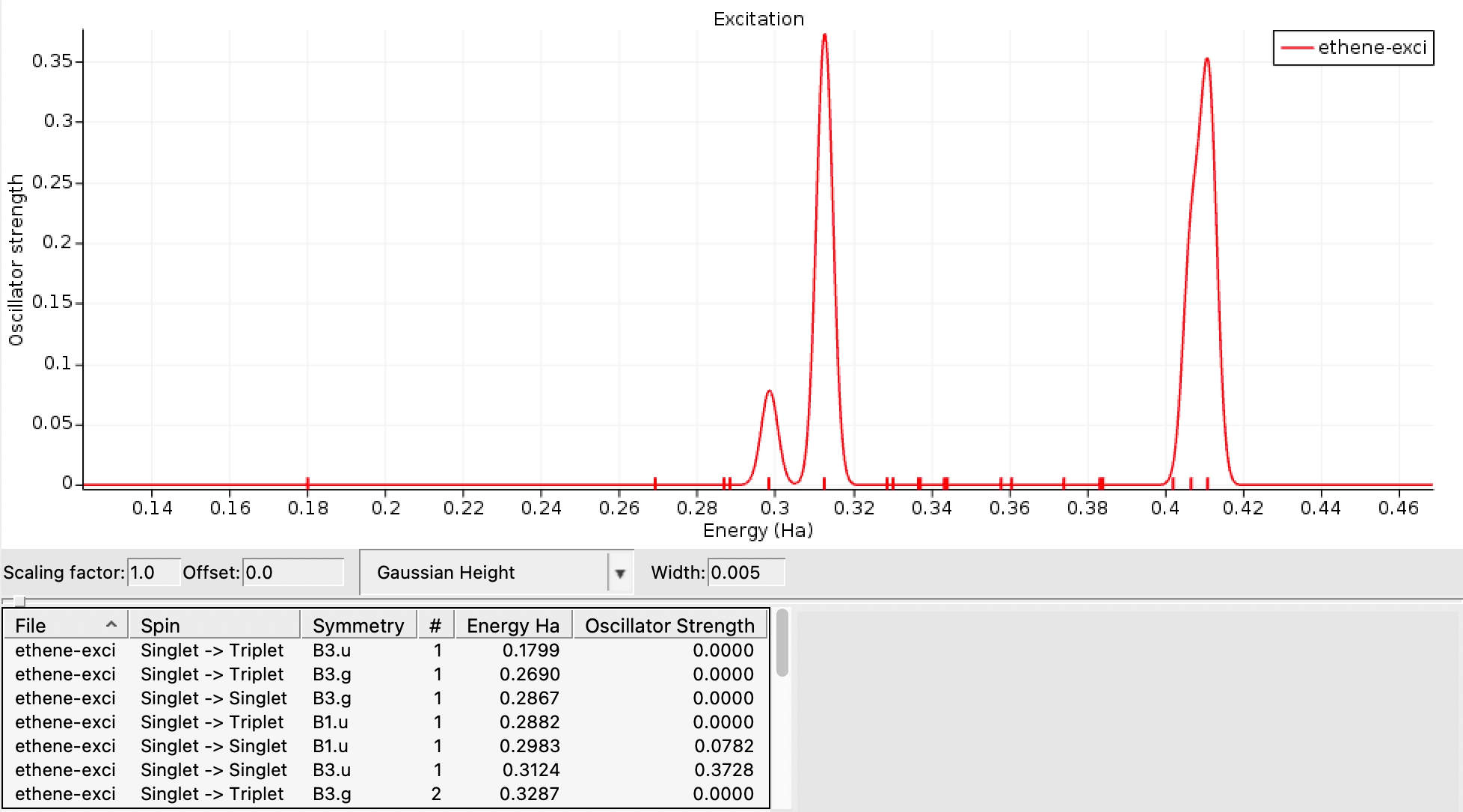
AMSspectra ($AMSBIN/amsspectra) shows spectra calculated by AMS. It can show IR, Raman, NMR, excitation and circular dichroism spectra. For some spectra it can also perform additional tasks (using other AMS-GUI modules), like displaying normal modes or orbitals.
SCM → Band Structure
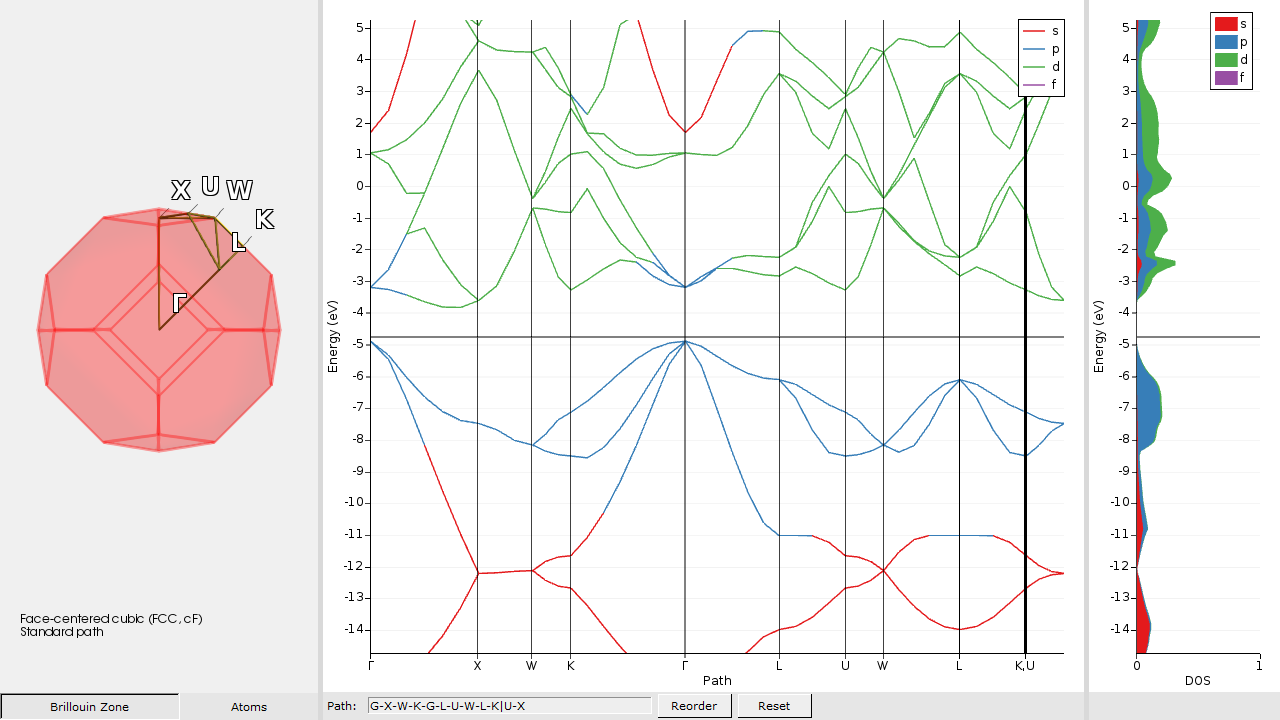
AMSbandstructure ($AMSBIN/amsbands) shows dispersion spectra like the band structure of solids, or phonon spectra, as calculated by for example Band or DFTB.
SCM → Dos
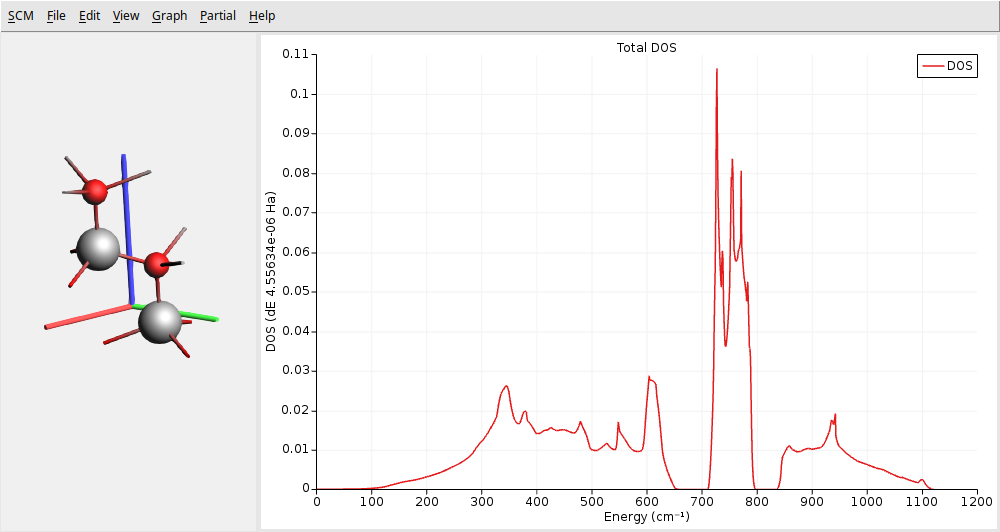
AMSdos ($AMSBIN/amsdos) shows DOS-like results. You can easily select which partial DOS to show by selecting atoms, and you can even select to show the GPDOS for select atoms and L-shells.
SCM → KFBrowser
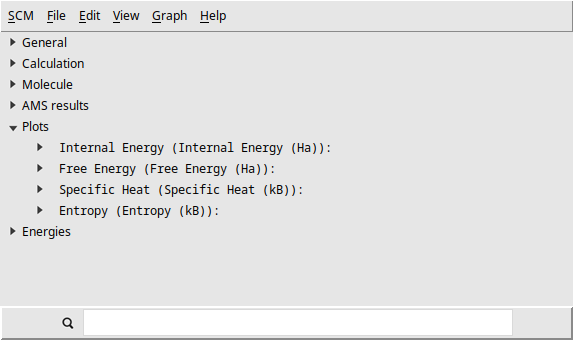
KFBrowser ($AMSBIN/kfbrowser) is a graphical interface to examine data from the binary KF files produced by most of the computational engines in the Amsterdam Modeling Suite.
You can use it to see details, graphs, copy data in table format, or get to the low-level contents of the result files.
SCM → COSMO-RS
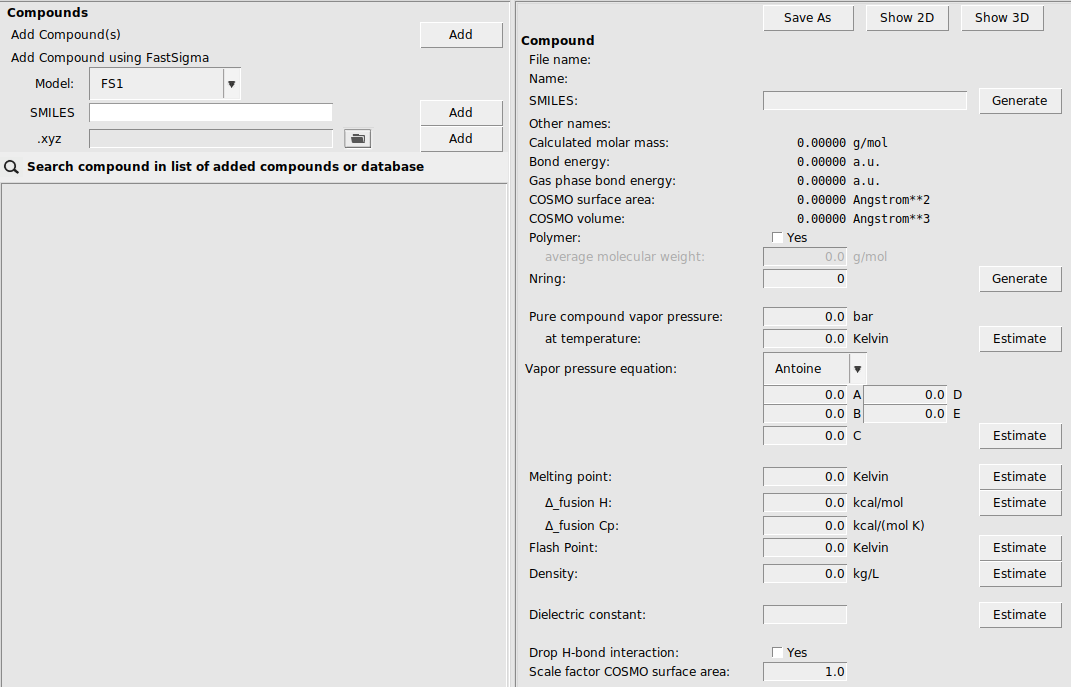
AMScrs ($AMSBIN/amscrs) enables ADF users to easily select compounds, create COSMO-RS jobs, run the jobs, and visualize the results.
SCM → Kinetics
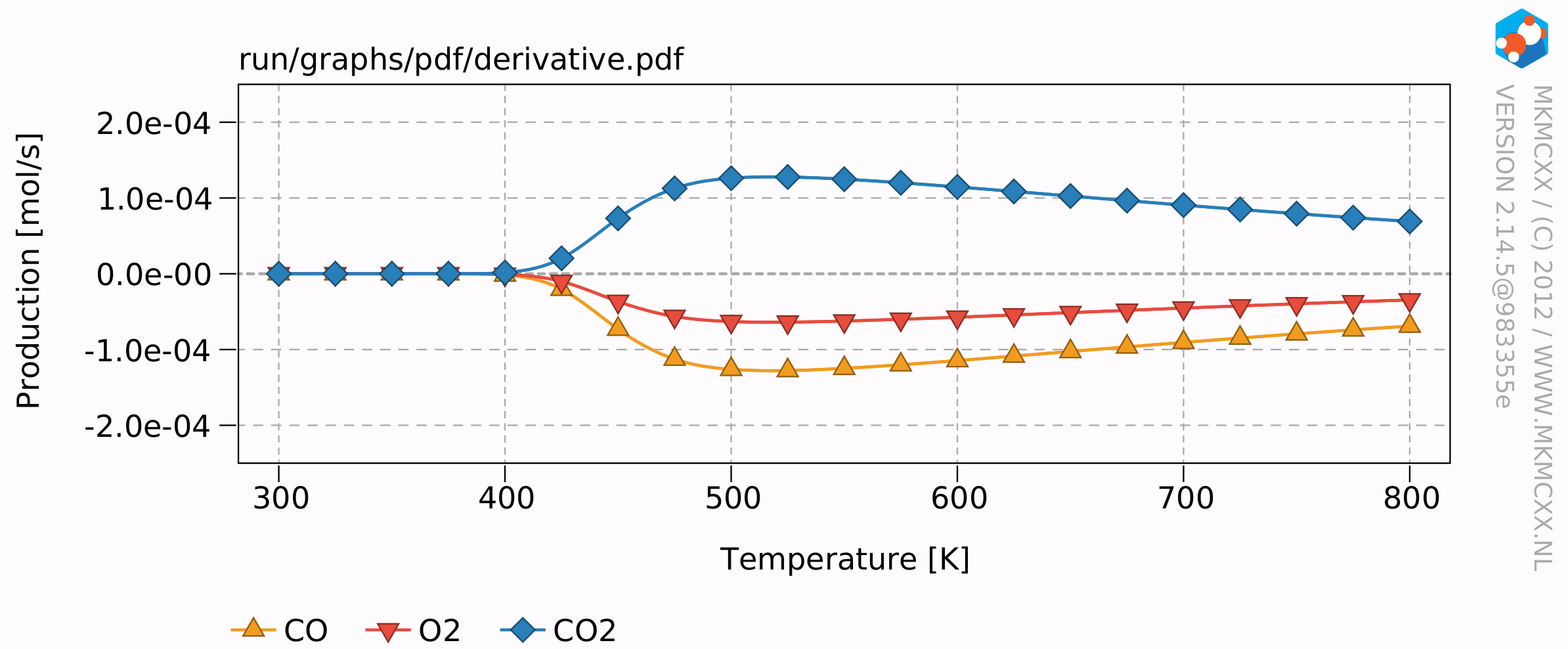
AMSkinetics ($AMSBIN/amskinetics) allows you to perform microkinetics calculations using the MKMCXX program, as well as Kinetic Monte Carlo simulations with the Zacros code.
SCM → ParAMS
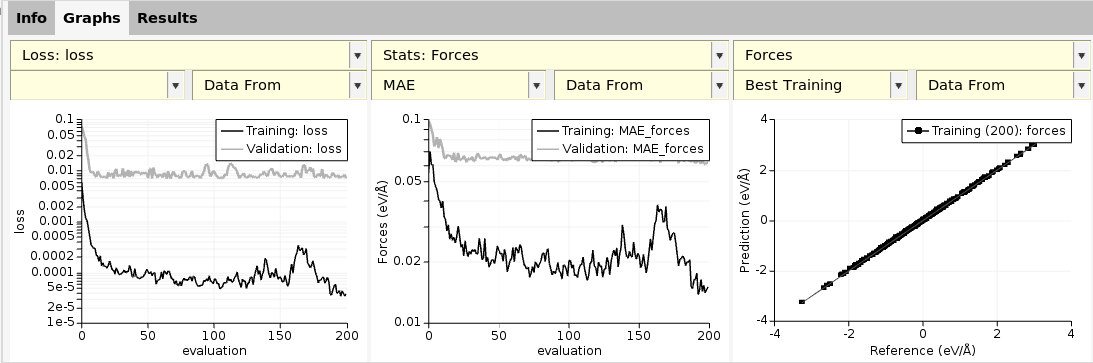
ParAMS ($AMSBIN/params gui) lets you set up training and validation sets, run ReaxFF and DFTB parametrizations, and view the results.
SCM → BBinput
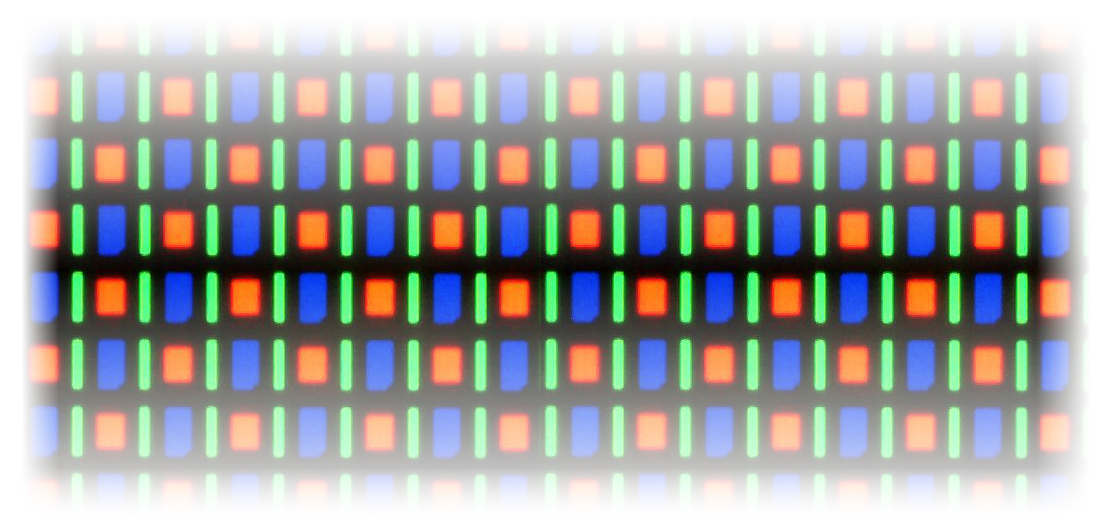
Bumblebee ($AMSBIN/bbinput) lets you set up Bumblebee OLED device simulations. See the Bumblebee tutorials.
SCM → BBresults
View results from Bumblebee ($AMSBIN/bbinput) simulations. See the Bumblebee tutorials.
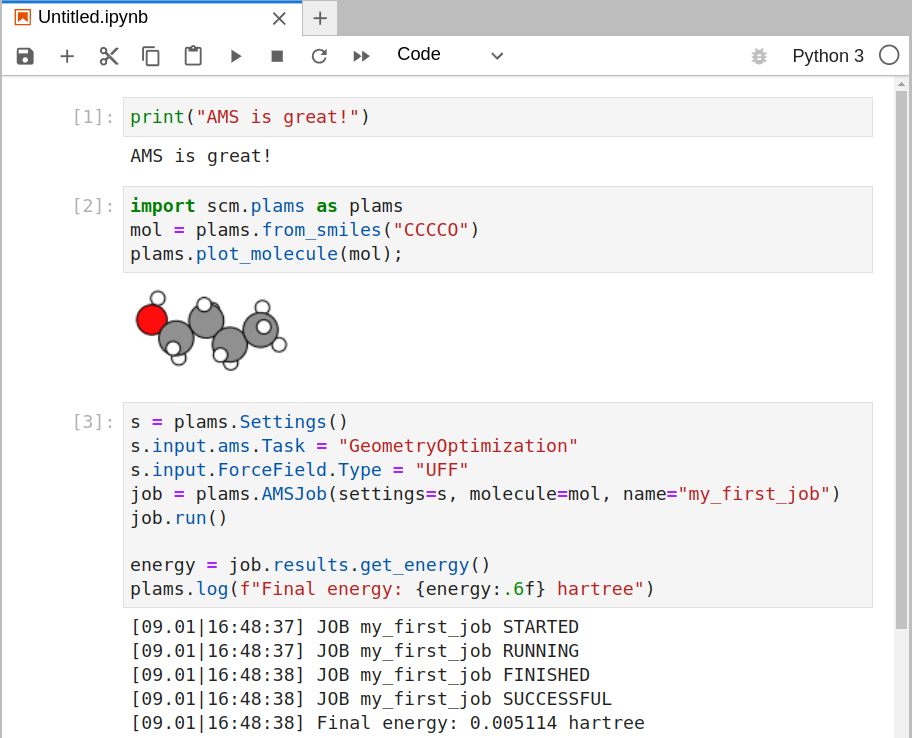
SCM → JupyterLab
JupyterLab lets you interactively run and analyze jobs with Python.
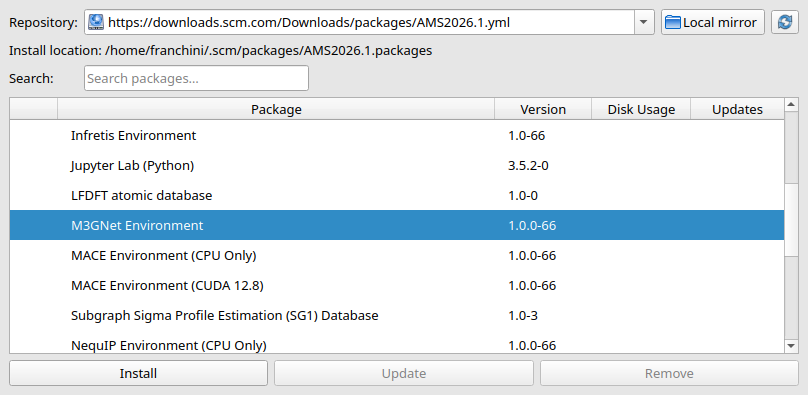
SCM → Packages
AMSpackages ($AMSBIN/amspackages gui) allows you to install optional components of the Amsterdam Modeling Suite, which are not included in the base AMS distribution package.
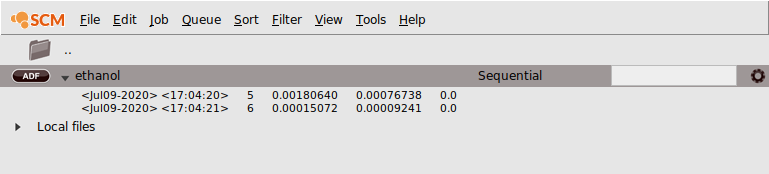
SCM → Jobs
AMSjobs ($AMSBIN/amsjobs) manages your jobs: run a job on your local machine or on remote machines. It also serves as a interface to all files belonging to your job, and it serves as a convenient launcher of the other AMS-GUI modules.
Tip
In AMSjobs:
Right click on the left side of a job (like the icon or name) to get a pop-up version of the SCM menu with that job selected.
Right click on the right side of a job (like the queue or options field) for more pop-up commands (Run, Kill, …).
- SCM → Windows
List of all open AMSGUI windows
- SCM → Quit
Close current AMSGUI windows
- SCM → Quit All
Close all AMSGUI windows