
Run Jobs with AI Agents: Codex and Claude Code
In this tutorial you will learn how to use AI coding agents like Codex and Claude Code to run AMS calculations and extract results into a readable report.
A typical scenario is:
You write a prompt explaining what you want to do and invoke the
ams2026skill. Be as specific as possible!The agent writes a PLAMS Python script to run the calculation.
You verify that the script does what you expect it to do and let the agent run it.*
The agent writes a second Python script to analyze the results from the previous calculations.
You verify that the script does what you expect it to do and let the agent run it.*
The script creates a report in markdown format called
report.md, with tables in csv format in atables/directory and figures in png format in afigures/directory.
* Depending on the agent and your settings the scripts may be automatically executed.
See the Python Examples tagged “AI Agent” for examples of the kinds of reports that can be generated.
We will use the command-line interface (CLI) version of these apps, but you can also use the desktop Codex or Claude apps, or the VS Code plugins.
Prerequisities: Make sure that you have AMS2026.106 or later and can run a job from the command-line.
Warning
The coding agents provide sandboxes, but they interfere with the AMS license checking mechanism. For this reason, you must run AMS outside the sandbox. The ams2026 skill automatically ensures that this happens.
Install the ams2026 skill
Open a terminal and run the job from the command-line tutorial. This ensures that your license and environment is set up correctly.
Start your coding agent:
codex   # for Codex
claude  # for Claude Code
Install the ams2026 skill (requires AMS2026.106 or later) by asking your agent:
Install the skill from `$AMSHOME/skills/ams2026`Alternatively, you can download the skill from our website.

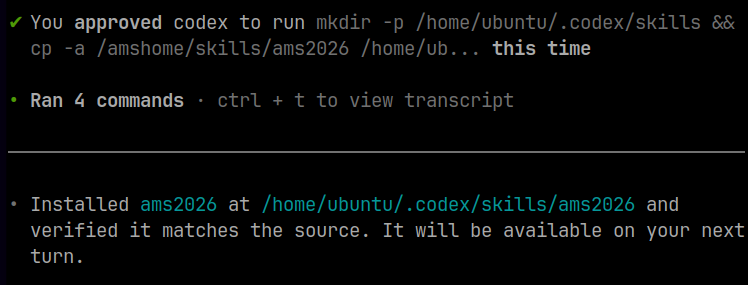
In Codex, you can invoke the skill by typing Use $ams2026.
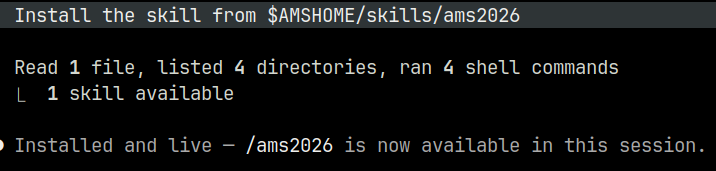
In Claude Code, you can invoke the skill by typing /ams2026.
Manual ams2026 skill installation instructions
Copy the skill folder to a place where your coding agent can find it:
In a terminal run these commands:
mkdir -p "$HOME/.agents/skills"
cp -r "$AMSHOME/skills/ams2026" "$HOME/.agents/skills"
In a terminal run these commands:
mkdir -p "$HOME/.claude/skills"
cp -r "$AMSHOME/skills/ams2026" "$HOME/.claude/skills"
For more information about skills in your coding agent, read the agent’s documentation.
Restart the coding agent
Restart the coding agent to ensure that it will be able to pick up the skill.
Create the prompt and let the agent run
Codex: start typing
$ams2026; Claude Code: start typing/ams2026. If the skill has been installed correctly, it should be found at the bottom of the screen:
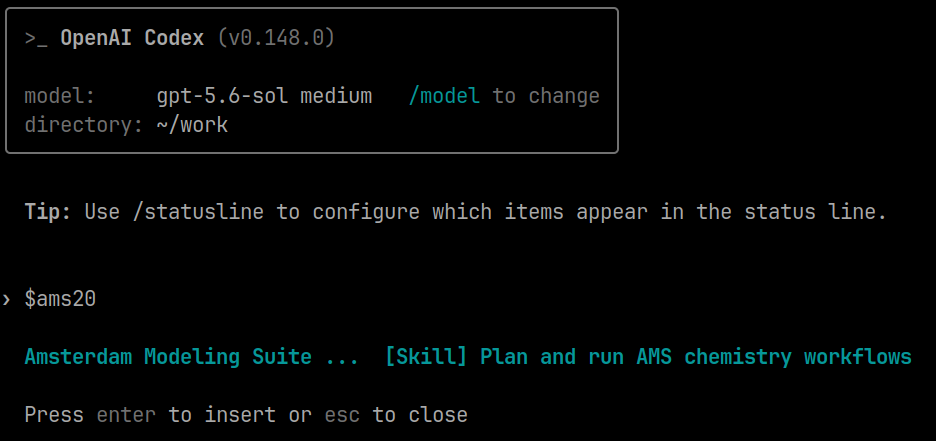
If the skill cannot be found, then double-check the installation or ask the agent to help you with the installation!
Continue typing the full prompt and press Enter:
Codex:
$ams2026 Run a geometry optimization of ethanol with the UFF force field,
and report the optimized O-H bond length.
Claude Code:
/ams2026 Run a geometry optimization of ethanol with the UFF force field,
and report the optimized O-H bond length.
The agent
searches your local AMS installation for related examples and documentation,
creates a PLAMS Python script to run the job, called something like
01-run.py, andasks for permission (note: some agents may automatically determine that the script is safe to run) to run it with the
amspythonPython interpreter.
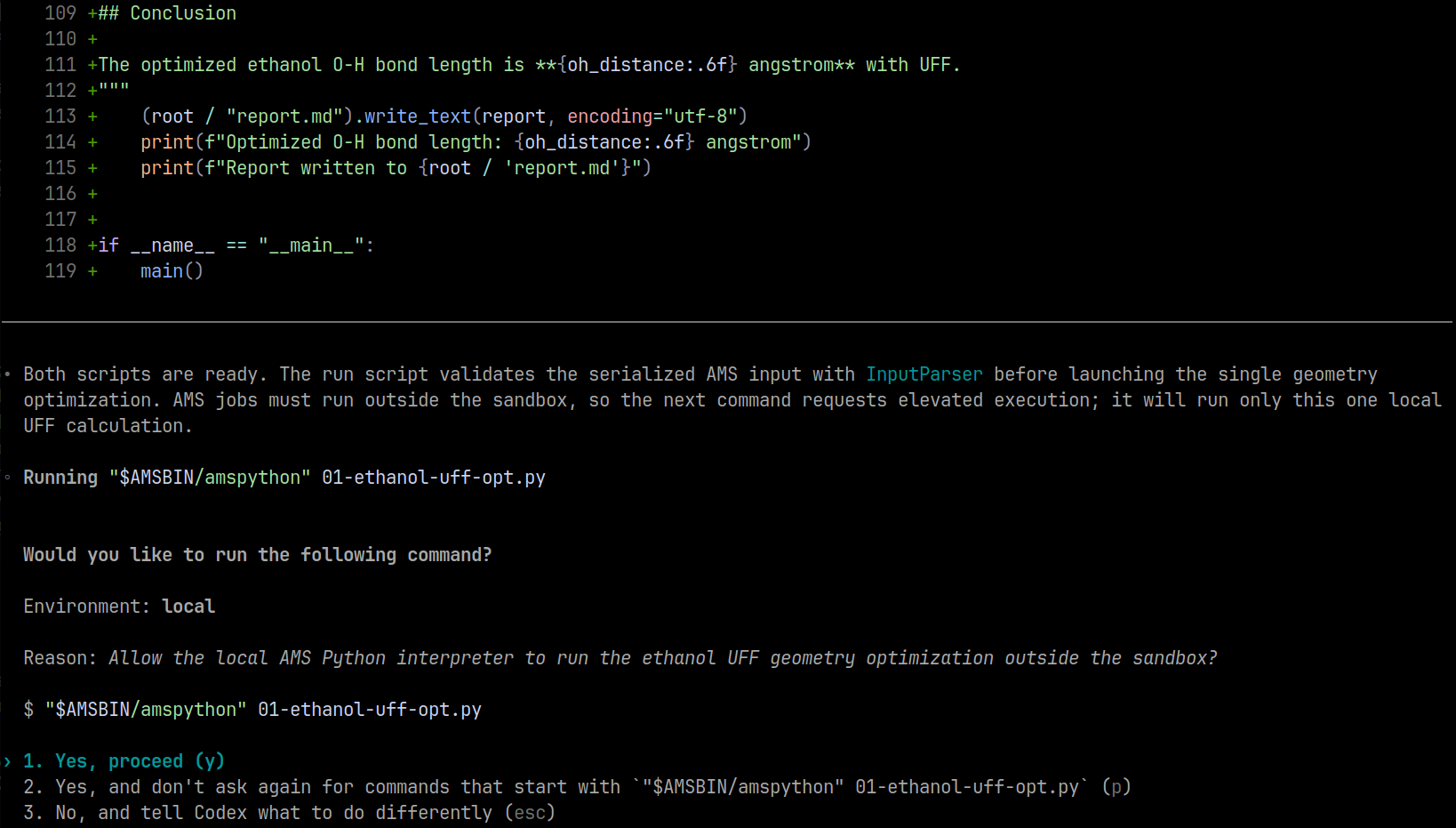
Your screen and script may look a bit different. The remaining screenshots show Codex, but Claude Code will look similar. Claude Code will by default not ask for permissions, but just run the jobs.
Inspect the contents of
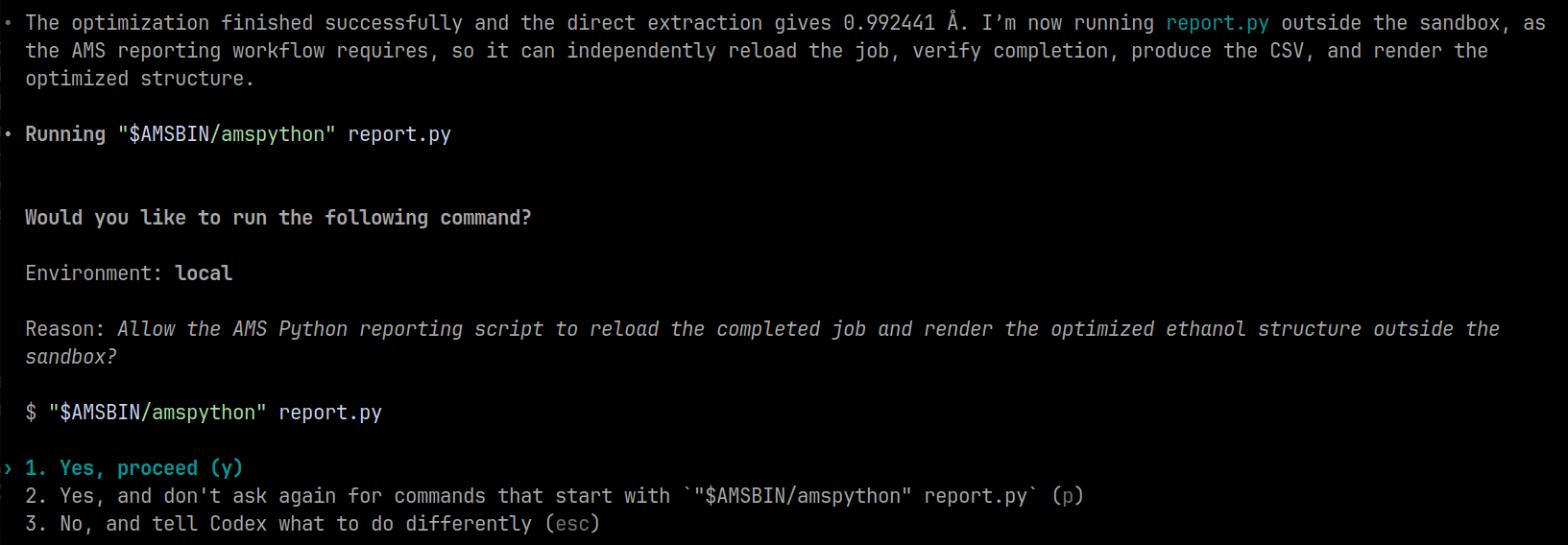
01-run.pyin a text editor. If you are happy with it, select “Yes, proceed” in the Codex window by pressing Enter.After the job has finished, you will be prompted to also run the reporting script, typically called
report.py:
Inspect
report.pyin a text editor, and if you are happy, select “Yes, proceed” in the Codex window by pressing Enter.
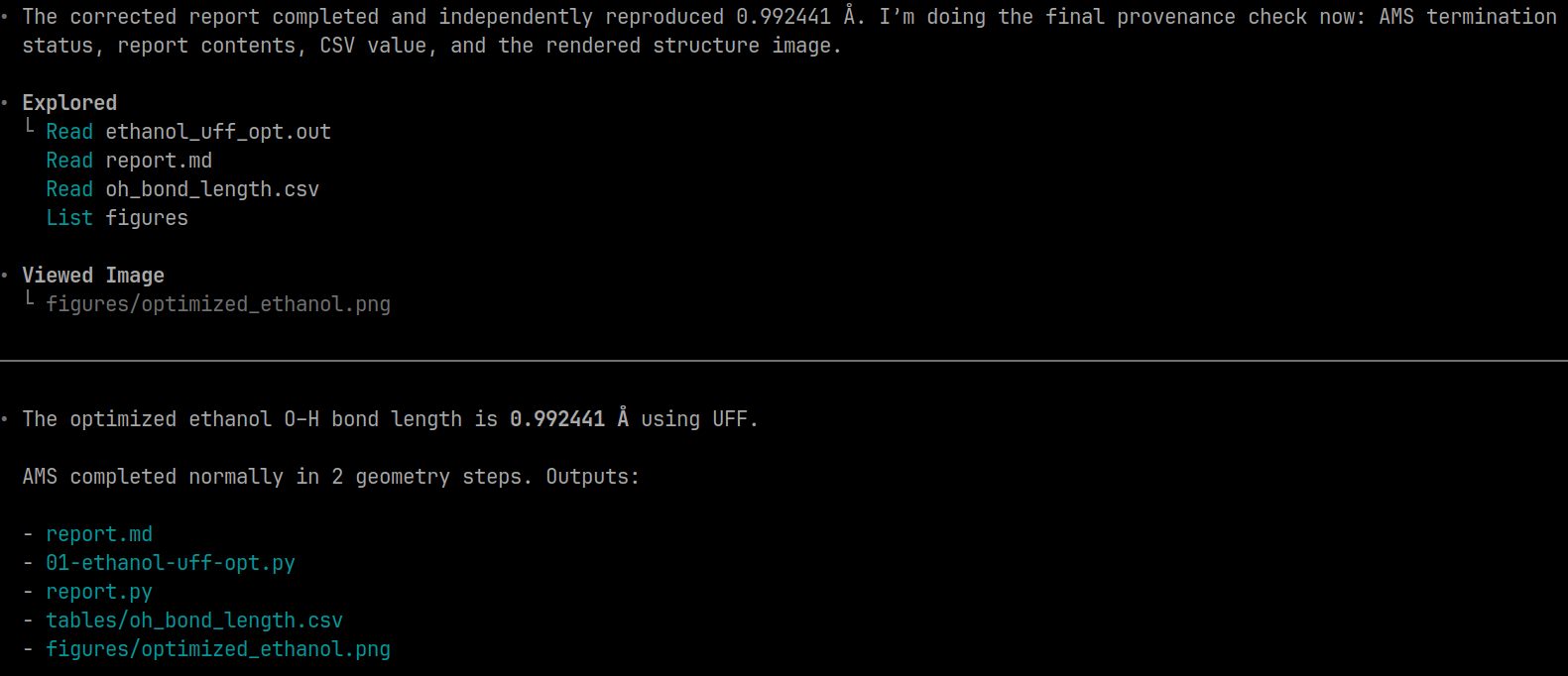
Congratulations! Your AI agent ran the job and reported the results.
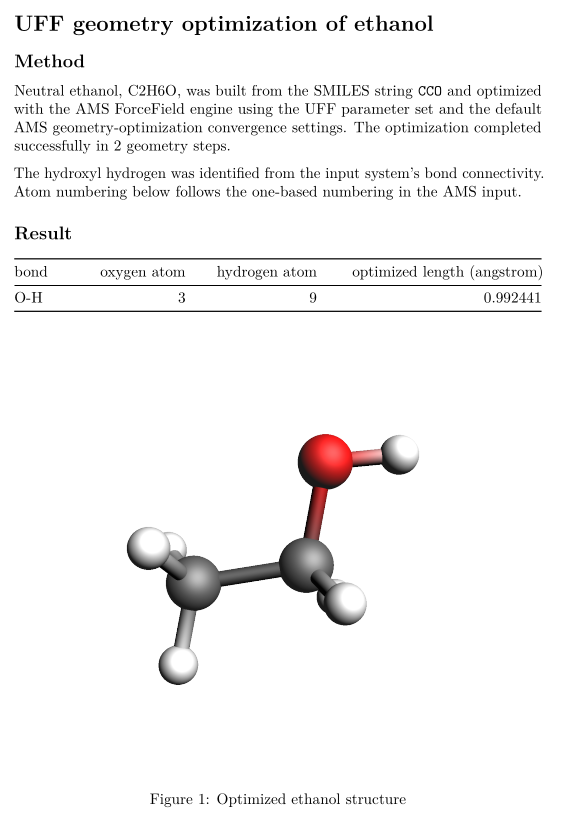
Open the
report.mdfile in a text editor or Markdown previewer to read the full report. It may look something like this:
# UFF geometry optimization of ethanol
## Method
Neutral ethanol, C2H6O, was built from the SMILES string `CCO` and optimized with the AMS ForceField engine using the UFF parameter set and the default AMS geometry-optimization convergence settings. The optimization completed successfully in 2 geometry steps.
The hydroxyl hydrogen was identified from the input system's bond connectivity. Atom numbering below follows the one-based numbering in the AMS input.
## Result
| bond | oxygen atom | hydrogen atom | optimized length (angstrom) |
|:-------|--------------:|----------------:|------------------------------:|
| O-H | 3 | 9 | 0.992441 |

## Calculation input
```ams
Task GeometryOptimization
System
Atoms
C -0.9745520786 -0.3256280330 0.0347324309
C 0.5259049025 -0.0848487949 -0.0249958570
O 0.7821754701 1.2912949526 -0.0031606083
H -1.1800445999 -1.4167589342 0.0175201542
H -1.3918342106 0.1048386169 0.9697505637
H -1.4707868241 0.1482355855 -0.8387028394
H 1.0095300254 -0.5739039988 0.8497446060
H 0.9304797905 -0.5304527621 -0.9609420720
H 1.7691275246 1.3872233679 -0.0439463781
End
BondOrders
1 2 1.0
1 4 1.0
1 5 1.0
1 6 1.0
2 3 1.0
2 7 1.0
2 8 1.0
3 9 1.0
End
End
Engine ForceField
Type UFF
EndEngine
```
## Conclusion
The optimized ethanol O-H bond length is **0.992441 angstrom** with UFF.
Next steps
Use plan mode for complex jobs
Before diving into very complicated calculations, use the skill to create quick prototypes and test calculations.
For more complicated jobs, use the
/planmode in Codex or Claude Code to work out the details before starting an expensive calculation. Make sure that the job settings are correct!
Write HTML reports rather than Markdown
HTML can be more convenient to visualize than Markdown. Tell the agent to generate an HTML report instead, and open it in your web browser!
Modify the skill
Tell the agent to modify the skill (the installed skill, not the original one
from the $AMSHOME!), for example,
to write HTML reports by default, or
to write the report in Dutch, or
to first look in your own calculation library to better match the style of previous calculations.
There are many customizations to make, and you should make them!
Convert markdown to PDF
If you have pandoc installed on your system, convert the report.md file
to pdf. In a terminal, run:
pandoc -i report.md -o report.pdf
YOLO mode and one-shotting
Warning
YOLO mode will run agent-generated code on your machine without prompting. Make sure that you understand the security implications!
By default you will be prompted whether to run the agent-generated Python scripts.
If you trust that the agent will not write destructive code and you want to “one-shot” a result without any discussion, you can do something like:
cat >instructions.md <<'EOF'
Use $ams2026

Run a geometry optimization of ethanol with the UFF force field,
and report the optimized O-H bond length.

Create an HTML report instead of a markdown report.
EOF

# Codex:
codex --yolo exec < instructions.md

# Claude:
claude --dangerously-skip-permissions -p < instructions.md
Double-check your agent’s pricing and if this sort of usage is covered by your subscription.
More examples of prompts and reports
See the Python Examples tagged “AI Agent” for more examples of the kinds of prompts that you can use.
Skill contents
The AMS skills reference lists the installed skill files and their contents.